
If your extracted images are not showing in your OSP and is instead showing your greenscreen images you may need to clear your caches. Do that by following the steps below, if it still does not work after that please contact the underclass department.
For Safari
Step 1
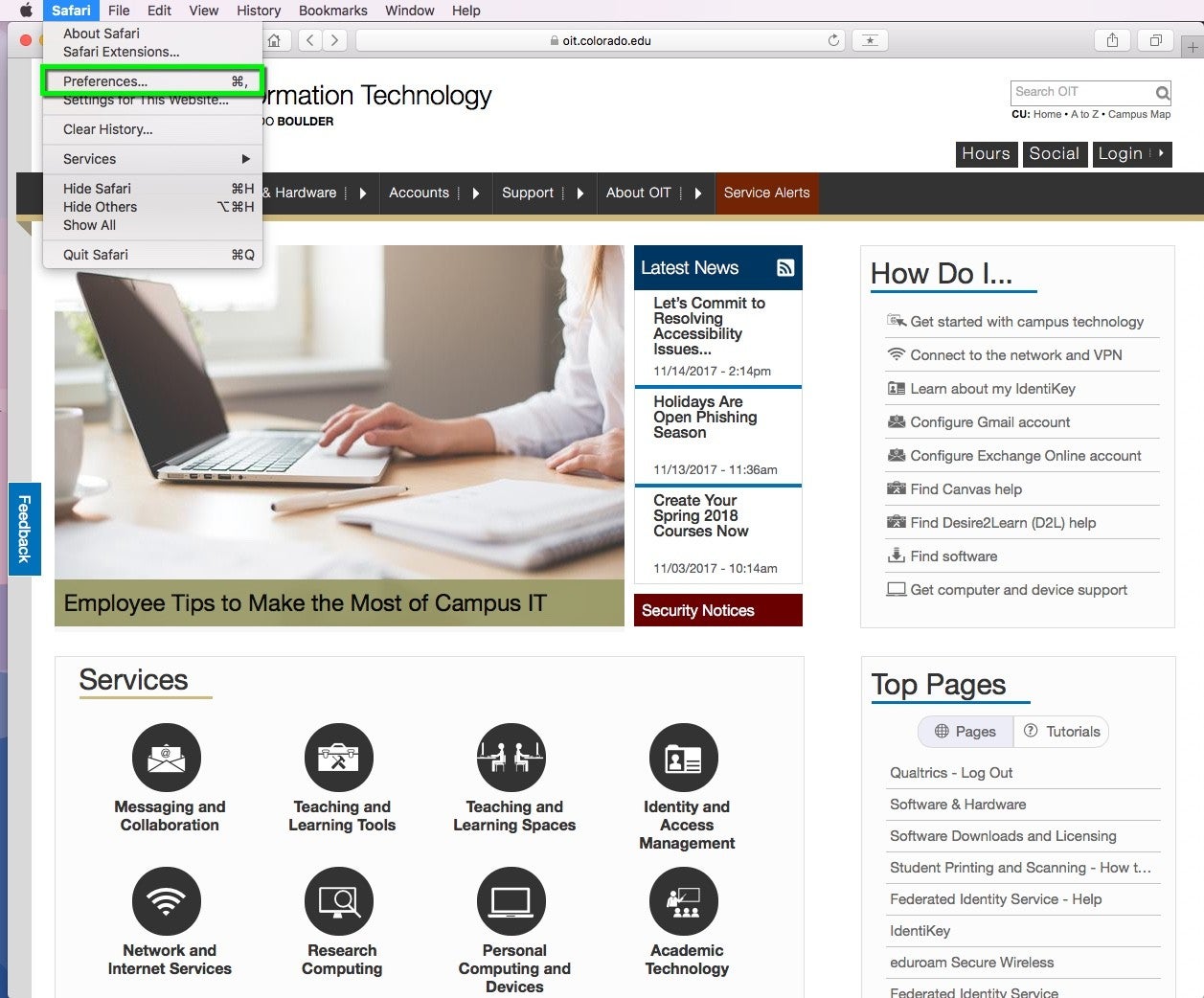
Click on the Safari drop-down menu and select Preferences.
Step 2
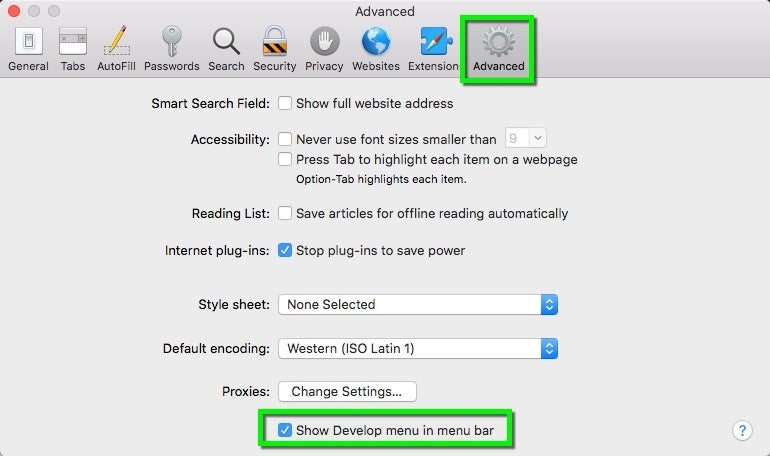
Click the Advanced tab. Select the Show Develop menu in menu bar checkbox and close the Preferences window.
Step 3
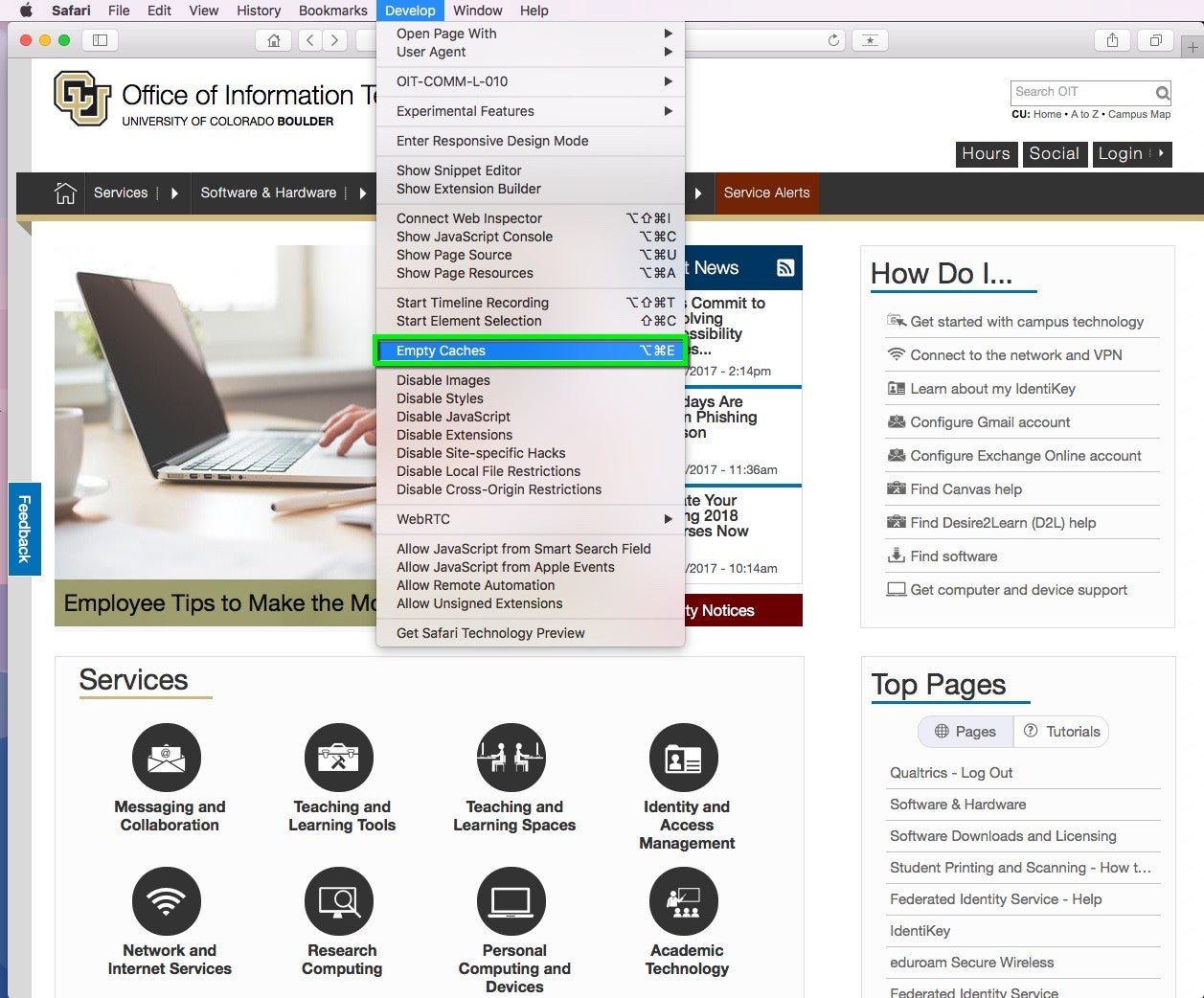
Select the Develop drop-down menu. Click Empty Cache.
Step 4
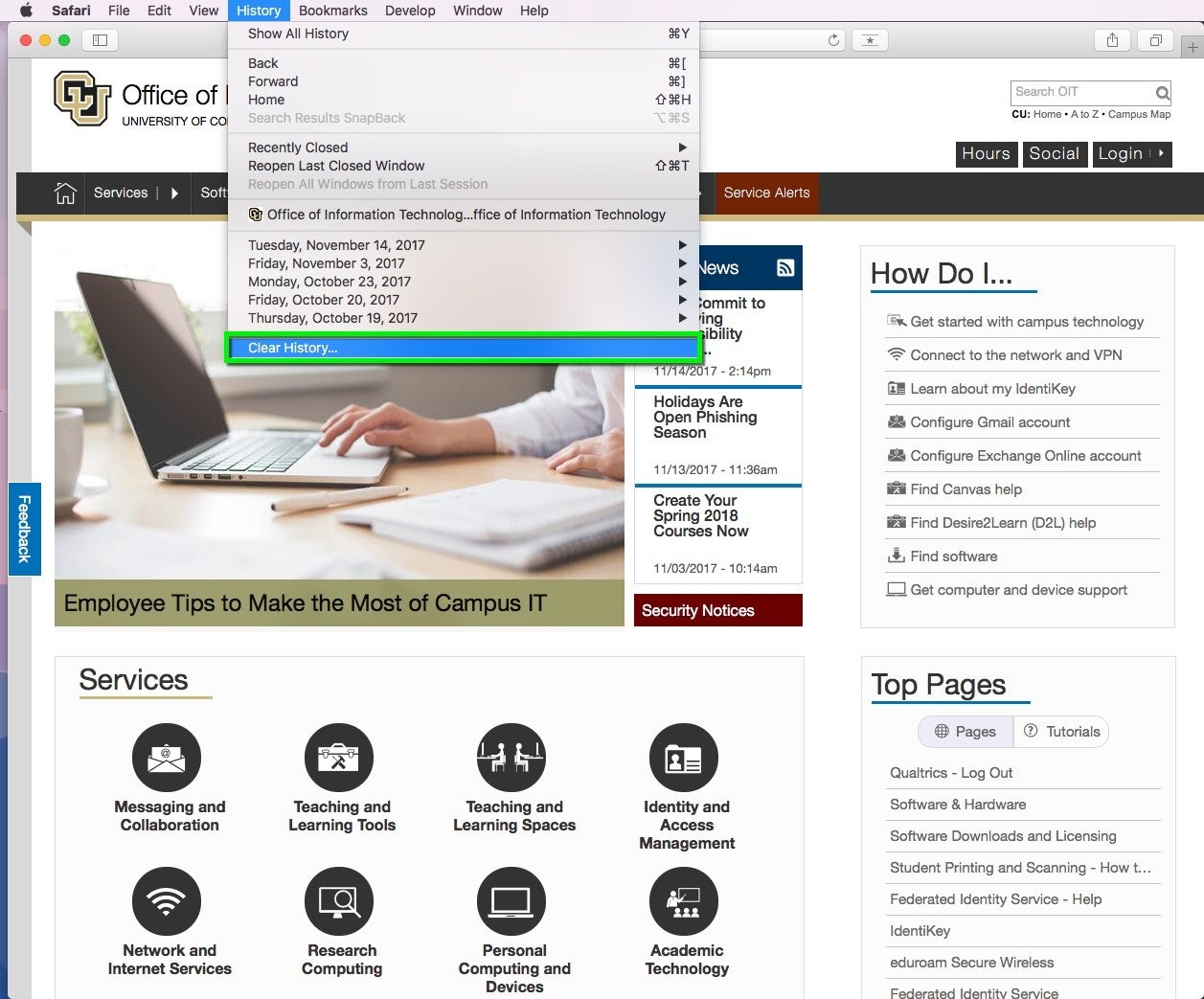
Note: You may want to also clear your browser history. Select the History drop-down, then Clear History.
For Chrome
Go to the three dots on the top right
- Go to settings in the drop down
- Select privacy and security (On the left towards the top)
- Click Clear browsing data
- Make sure Time range is set to All Time
- Uncheck everything except Cached images and files
- Hit clear data
- Go in and refresh the page or go to the page again if you don’t currently have it open.
*This is only for Chrome. Other Browsers will have different steps. Let customer service know if you are using a different browser.
Comments
0 comments
Please sign in to leave a comment.